
Auto Backup in Tally Prime: How to Schedule, Change or Remove a Backup Schedule

Auto backup in Tally Prime lets you schedule company backups so nobody has to remember to take them. From Release 7.0 you can set a daily, weekly or monthly schedule to TallyDrive (Tally's cloud storage) or to a local folder, keep several restorable versions, and pause or remove the schedule when you need to.
Below are the steps to set it up, how to stop or delete a schedule, how often to back up, and the checks that make sure the backup actually works when you need it.
What auto backup in Tally Prime does
A schedule tells TallyPrime which companies to back up, where to save them and when. Backups to TallyDrive can run even when TallyPrime is closed. The computer has to be on, though. If it is switched off at the scheduled time, the backup does not run and TallyPrime shows a failed-schedule notice the next time you open it.
Before Release 7.0 there was no built-in scheduler, so backups depended on someone doing it by hand. If you are on an older release, see Tally Backup and Restore: Complete Guide to Protecting Your Data for manual backup steps.
How to set up auto backup in Tally Prime
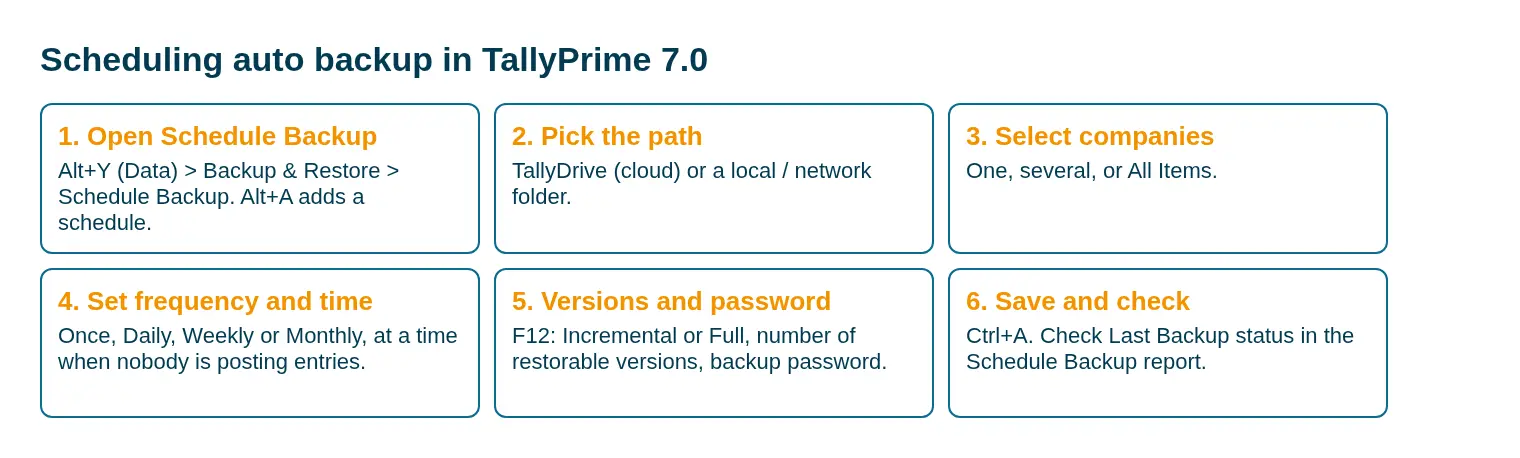
- Press Alt+Y (Data) > Backup & Restore > Schedule Backup. If schedules already exist, the Schedule Backup report opens. Press Alt+A to add one.
- Set the Backup Data Path: TallyDrive, or a local or network folder.
- Select the companies, or All Items for every company in the data path.
- Choose the Backup Frequency (Once, Daily, Weekly or Monthly) and the time.
- Press F12 to choose Incremental or Full backup and how many restorable versions to keep. The default is 7.
- For TallyDrive, set a backup password and a recovery e-mail if you want the backup encrypted.
- Press Ctrl+A to save. For TallyDrive, log in with your Tally.NET ID.
Incremental backup takes one full copy, then saves only the changes. It is faster and uses less space, so it suits most businesses.
How to pause or remove a scheduled backup
This is the question we get most about this feature. You can pause a schedule or delete it.
- To pause (turn off) a schedule. Open Alt+Y > Backup & Restore > Schedule Backup. Select the schedule, press Ctrl+Enter (Alter Schedule), turn on Pause Schedule and press Ctrl+A. It stays off until you turn that option off again.
- To remove a schedule. In the same report, select the schedule, press Alt+D and confirm.
- To change the time or path. Use Ctrl+Enter, edit the details and save.
Pause rather than delete if you only want to stop backups for a while, for example during a migration. You keep the settings and the version history.
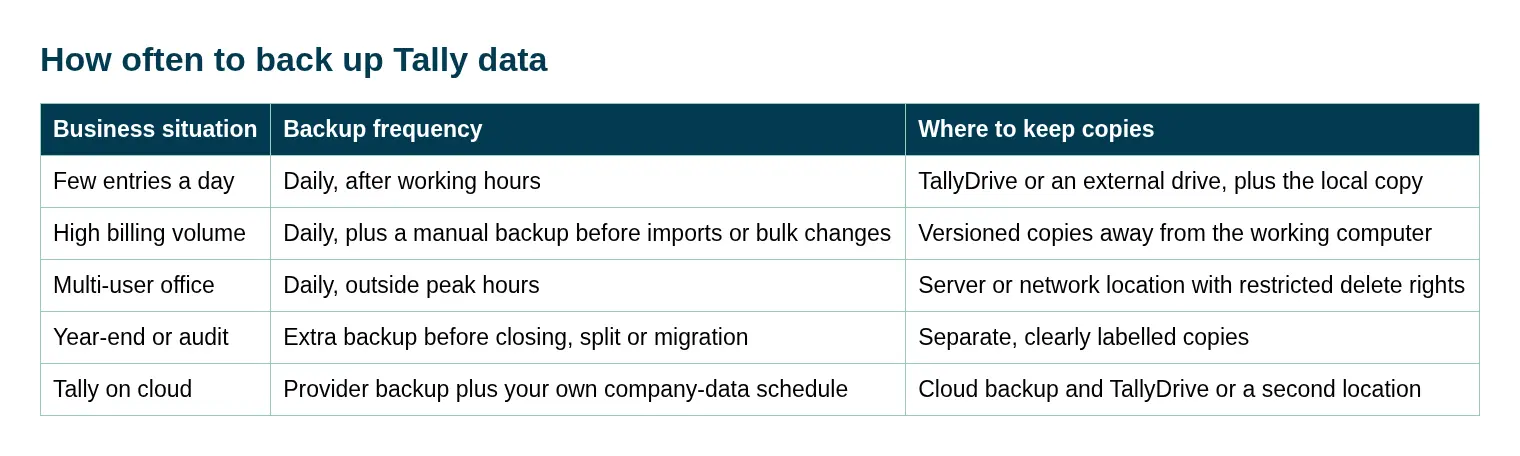
How often to back up
Where Tally data actually gets lost
In the setups we review, data loss is rarely dramatic. It is usually one of these:
- The backup sits on the same computer as the data. The disk fails and both go.
- One backup file is overwritten every day, so a mistake from Tuesday is in Wednesday's copy too.
- A user deletes or alters vouchers and nobody notices for weeks.
- Ransomware encrypts the shared folder, including the backups kept in it.
- The scheduled backup has been failing for a month and nobody checked.
Scheduling fixes the "someone forgot" problem. The rest need storage, access and checking rules around it.
Roles, audit trail and access control
Backup protects you after something goes wrong. Controls stop it going wrong in the first place. In TallyPrime, give each person their own user and a role that matches the job. A billing clerk does not need rights to delete vouchers or alter masters. Keep Edit Log (audit trail) on so altered and deleted vouchers can be traced. Limit who can delete files in the backup folder.
Our TallyPrime security controls service covers user roles, rights, audit trail and backup planning together, because one weak point undoes the others.
Test the restore, not just the backup
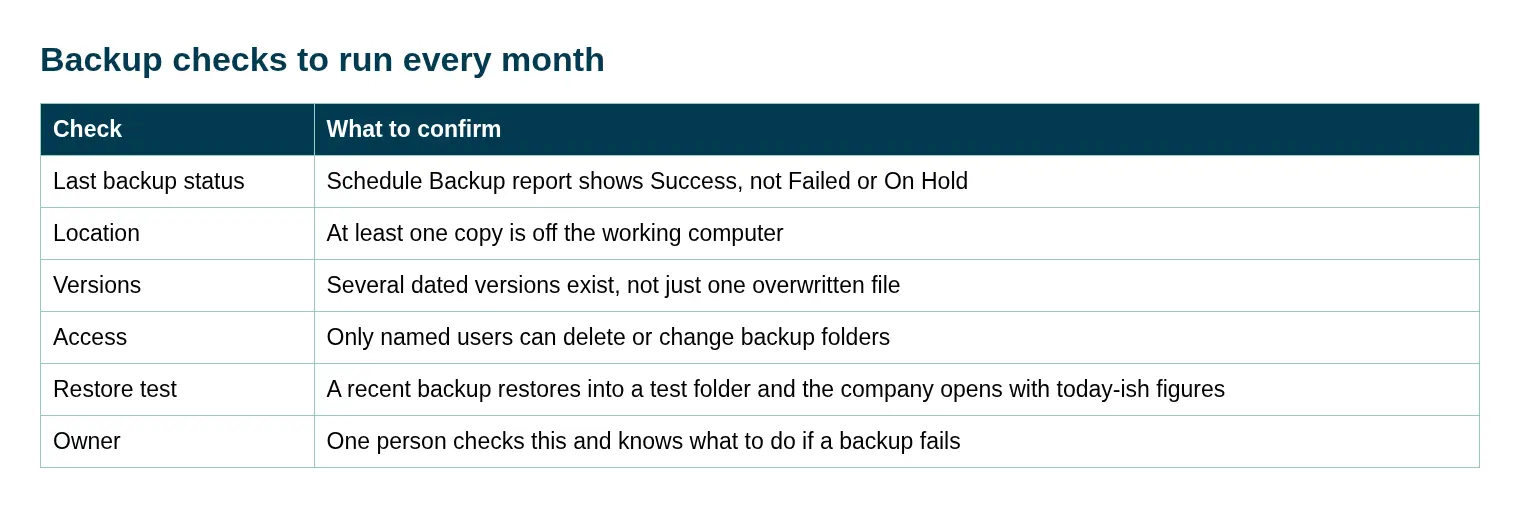
Once a month, restore a recent backup into a separate test folder (Alt+Y > Backup & Restore > Restore). Open the company and check that the last few days of entries are there. It takes ten minutes and tells you whether the backup would save you.
What to do when data is lost
- Stop all users from posting entries so nothing overwrites what is left.
- Note what is missing or wrong and roughly when it happened.
- Pick the last backup from before the problem. Restore it to a new folder, never over the live data.
- Check the restored company, then re-enter anything posted after that backup.
- Find the cause (deleted vouchers, disk failure, virus) and fix it before going back to normal work.
For broader protection beyond backup, read Uncompromised Tally Data Security.
Conclusion
If you are on TallyPrime 7.0 or later, set up a daily backup schedule today. Send at least one copy off the working computer, keep several versions, and restore a backup once a month to prove it works. Pause a schedule with Ctrl+Enter and Pause Schedule, or delete it with Alt+D.
Want a second pair of eyes on your backup and user setup? Talk to us about TallyPrime security controls or message us on WhatsApp.
FAQs on Auto Backup in Tally Prime
1. Does Tally Prime have auto backup?
Yes. From Release 7.0, TallyPrime can schedule backups to TallyDrive or a local folder: once, daily, weekly or monthly.
2. How do I remove a scheduled backup in Tally Prime?
Open Alt+Y (Data) > Backup & Restore > Schedule Backup, select the schedule, press Alt+D and confirm. To stop it for a while instead, press Ctrl+Enter and turn on Pause Schedule.
3. Will the scheduled backup run if my computer is off?
No. The backup does not run if the computer is off at the scheduled time. TallyPrime shows a failed-schedule notice the next time you open it.
4. How many backup versions does TallyPrime keep?
The default is 7 restorable versions. You can change it between 1 and 366 through F12 when you create or alter the schedule.
5. How often should Tally data be backed up?
Daily for any business that posts entries every day, plus an extra backup before imports, year-end closing, splits or migrations.
Continue Reading
Get a personal consultation.
Call us today at +919211044269
Want our TallyPrime tips in Google first? Add us as a preferred source.