

Custom Fields in TallyPrime for Business-Specific Data Capture.
Add business-specific fields to TallyPrime vouchers, ledgers, inventory masters, invoices, reports, and workflows so your team can capture the exact information required for operations, approvals, and MIS reporting.
- Voucher and master field review
- Validation and access planning
- Report and invoice mapping
- Post-go-live support
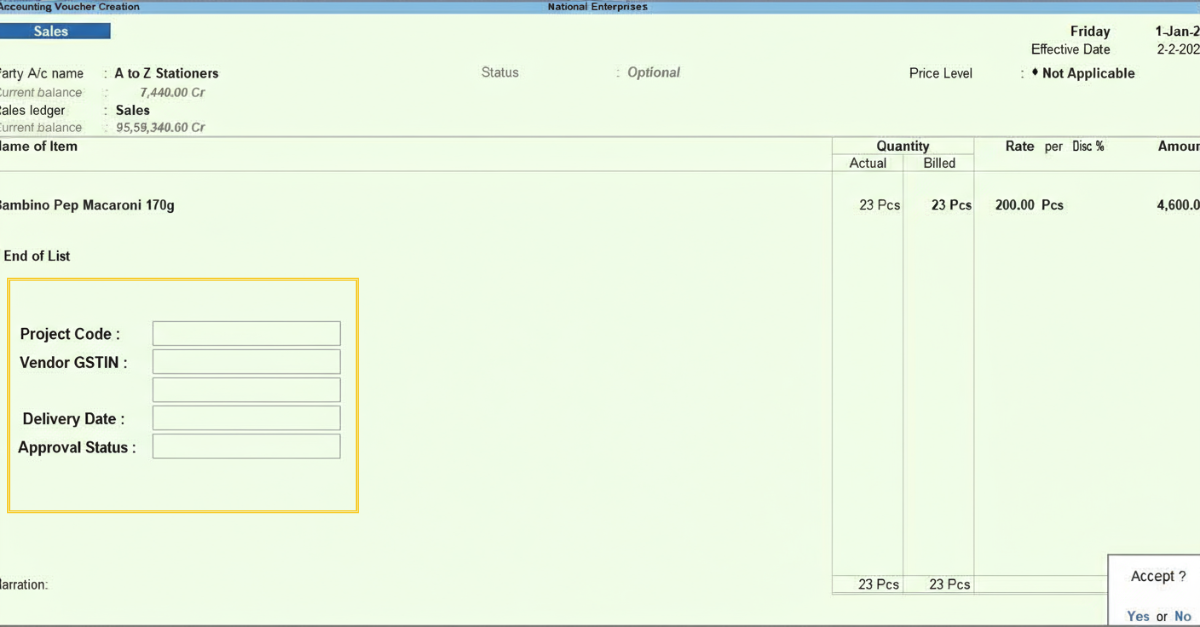
When standard TallyPrime fields do not capture enough detail.
TallyPrime already manages core accounting and inventory data. Custom fields help when your business needs extra operational context, approval details, customer references, project information, or reporting dimensions that are not available in the standard screens.
Missing business details
Teams need project codes, customer references, branch details, transport notes, or internal tags inside transactions.
Manual notes outside Tally
Important data gets stored in Excel, emails, or paper notes because the required field is not available in TallyPrime.
Reports need more dimensions
MIS reports require filtering by salesperson, project, department, delivery status, approval stage, or custom categories.
Data needs controls
Some fields need validation rules, mandatory entry, restricted visibility, or workflow-specific behavior.
Where can custom fields be added in TallyPrime?
Custom field planning depends on where the information should be entered, who should see it, and how it will appear in invoices, reports, imports, or integrations.
Vouchers
Add transaction-level fields for sales, purchase, receipt, payment, journal, debit note, credit note, and stock vouchers.
Ledgers
Capture customer, vendor, party, region, credit, registration, or account-specific information.
Inventory masters
Add product, batch, size, model, warranty, shelf-life, category, or item-level operational fields.
Invoices
Use custom fields in print formats, GST-ready invoices, declarations, transport details, and customer-specific layouts.
Reports
Use added fields as filters, columns, grouping logic, MIS dimensions, or exception-report inputs.
Approvals
Track review status, approval notes, user actions, document readiness, or process stages.
Imports
Map Excel columns into custom fields so recurring data imports remain structured and report-ready.
Integrations
Use custom fields to store references, IDs, status updates, or mapped data from connected applications.
A reliable custom field setup starts with three checks.
The safest field structure depends on the entry screen, validation rules, report usage, and whether the field should connect with imports, invoices, or integrations.
Field source and location
Confirm whether the field belongs in a voucher, ledger, inventory master, invoice, report, or connected workflow.
Rules and validation
Define mandatory entry, allowed values, calculations, visibility, user access, and dependency rules before development.
Output and reporting use
Plan how the field should appear in screens, print formats, Excel exports, MIS reports, dashboards, or API flows.
What type of data can custom fields capture?
Fields can be simple or rule-driven depending on the business need. We first map the purpose of the field, then define the screen, format, restrictions, and downstream reporting requirement.

Which custom field need sounds familiar?
Choose the closest business problem. Custom fields often become the base for cleaner invoices, sharper reports, faster imports, and better workflow control.
Our invoices need extra customer or item details.Custom fields can feed invoice columns, declarations, transport details, or customer-specific print layouts.
Our Excel import has extra columns.Mapped fields can capture recurring Excel data in a structured way inside TallyPrime.
Our external app sends reference data.Custom fields can store IDs, statuses, and mapped values used by API integrations.
Some details should be restricted or mandatory.Field behavior can be planned with user visibility, validation, approvals, and access controls.
We need a field that follows our internal process.Share the workflow and we can review whether it needs a field, validation, report, or automation.
How your TallyPrime custom field project works.
The process keeps field placement, data quality, reports, print formats, and user adoption aligned before changes go live.
Requirement review
Share the field purpose, screen, sample format, users, and expected output.
Workflow mapping
We map where the field should be entered, viewed, validated, and reported.
Field logic plan
Rules, formats, dropdowns, calculations, mandatory checks, and access needs are confirmed.
Build and test
The customization is developed and tested against sample vouchers, masters, reports, and print formats.
Implement and support
We guide go-live, user adoption, issue handling, and future refinements after implementation.
Custom field outcomes businesses usually need.
The goal is cleaner data capture, less manual follow-up, and better business visibility without forcing teams to maintain parallel spreadsheets.
Better data capture
Capture business-specific details inside the right TallyPrime screen instead of collecting them separately.
More useful reports
Use added fields for grouping, filtering, MIS analysis, branch tracking, approvals, and exception reporting.
Controlled workflows
Plan fields with validation, role-wise access, mandatory checks, and cleaner adoption across users.
Helpful reading for TallyPrime custom fields.
Use these pages if your custom field requirement is connected with reports, invoices, imports, integrations, or user access.
Invoice CustomizationUse invoice customization when custom field data must appear in print layouts.
Excel to Tally ImportUse mapped import utilities when Excel columns need to populate custom fields.
Custom fields in TallyPrime FAQs.
Short answers to the questions businesses usually ask before adding fields to TallyPrime.
Can custom fields be added in TallyPrime?
Yes. Custom fields can be added to selected vouchers, ledgers, inventory masters, reports, invoices, and workflows depending on the business requirement and feasibility. For broader customization, see our TallyPrime customization services.
Can custom fields appear in TallyPrime invoices?
Yes. Field values can be used in invoice print formats when they are captured in the right voucher, ledger, or inventory location. See invoice customization.
Can custom fields be used in reports?
Yes. Custom fields can be used as report columns, filters, grouping logic, or calculated inputs depending on how the data is stored. See report customization.
Can Excel import fill custom fields in TallyPrime?
Yes. Excel columns can be mapped into custom fields when the import structure, destination screens, and validation rules are planned correctly. See Excel to Tally import.
Can custom fields be restricted for selected users?
Some field visibility, entry, or workflow behavior can be planned with user-wise access and validation rules. See TallyPrime security controls.
Can custom fields store data from another application?
In many cases, custom fields can store mapped references, IDs, status values, or additional information from connected applications. Feasibility depends on the integration method and data ownership. See Tally API integration.
How long does custom field development take?
Timeline depends on the number of fields, screens, validation rules, reports, invoice formats, integrations, testing scenarios, and approval cycles.
Is custom field development safe for existing TallyPrime data?
Custom fields should be planned carefully and tested on sample data before go-live. Backups and controlled implementation help reduce operational risk.
Related TallyPrime services.
Custom fields often work best when planned with reports, invoices, imports, integrations, or access controls.
Need TallyPrime to capture the exact data your business needs?
Share the field, screen, report, invoice, import, or integration requirement. We will review the workflow and suggest a practical customization path.
